
A good password setup is less about memorizing clever strings and more about using unique passwords, a trustworthy password manager, multi-factor authentication, and a clear recovery plan before you need it.
Key takeaways
- Use unique passwords for every important account and store them in a vetted password manager.
- Enable MFA for email, banking, work, cloud storage, and administrator accounts.
- Review recovery email, phone, backup codes, and shared access before buying or upgrading a tool.
Start with the accounts that can cause the most damage
| Checklist area | What to review | Why it matters |
|---|---|---|
| Password manager | Security model, MFA, recovery, export | It protects many accounts |
| Email account | Unique password and MFA | It resets other logins |
| Backup codes | Stored securely offline or in a safe place | Prevents lockout |
| Shared access | Named users instead of shared passwords | Improves accountability |
Not every password deserves the same attention, but some accounts are critical. Email can reset other accounts. Banking controls money. Cloud storage may hold private documents. Work accounts can expose clients or coworkers. Router and domain accounts can affect websites and networks. Start your checklist there, then expand.
Current federal guidance has moved away from old habits such as forcing constant password changes for no reason. NIST SP 800-63B Revision 4 is the current authentication guidance for federal digital identity systems, and CISA’s public advice encourages strong passwords and password managers for everyday account safety. These sources are useful anchors for a practical review: NIST SP 800-63B-4 and CISA strong password guidance.
Choose a password manager with recovery in mind
A password manager should create, store, and autofill strong unique passwords, but recovery is just as important as convenience. Before you buy or upgrade, understand what happens if you forget the master password, lose a device, leave a company, or need emergency access. Some systems cannot recover a master password by design. That can be good for security, but only if you plan for it.
Review device support, browser extensions, family or team sharing, export options, MFA support, security history, and pricing. Do not choose only by the biggest discount. The tool will hold access to your digital life or business operations, so trust, transparency, and usability matter.
If your password review is part of a wider network cleanup, the article on improving home Wi-Fi coverage and speed explains why router admin credentials and Wi-Fi passwords should be reviewed alongside placement and performance.
Use MFA where account takeover would hurt
Multi-factor authentication adds a second proof beyond the password. That might be an authenticator app, hardware security key, device prompt, or passkey. SMS codes can be better than no MFA, but stronger methods are preferable for high-value accounts when available. CISA’s MFA toolkit is built around the idea that a password alone can only get you so far.
Prioritize email, financial services, work accounts, password managers, cloud storage, social accounts with business value, and administrator portals. Store backup codes carefully. If a service offers recovery codes only once, save them immediately in a safe place. A locked-out account can be almost as disruptive as a hacked one.
Automation can accidentally weaken MFA if it encourages people to bypass security or store secrets in workflows. Review desktop automation mistakes before automating login-adjacent tasks.
Stop reusing passwords before changing everything
When people decide to improve passwords, they often try to change every account in one exhausting session. A better approach is to sort accounts by risk. Change the email account first, then financial and work accounts, then cloud storage, shopping, social, and lower-risk services. As you change each account, save the new password in the manager and enable MFA when possible.
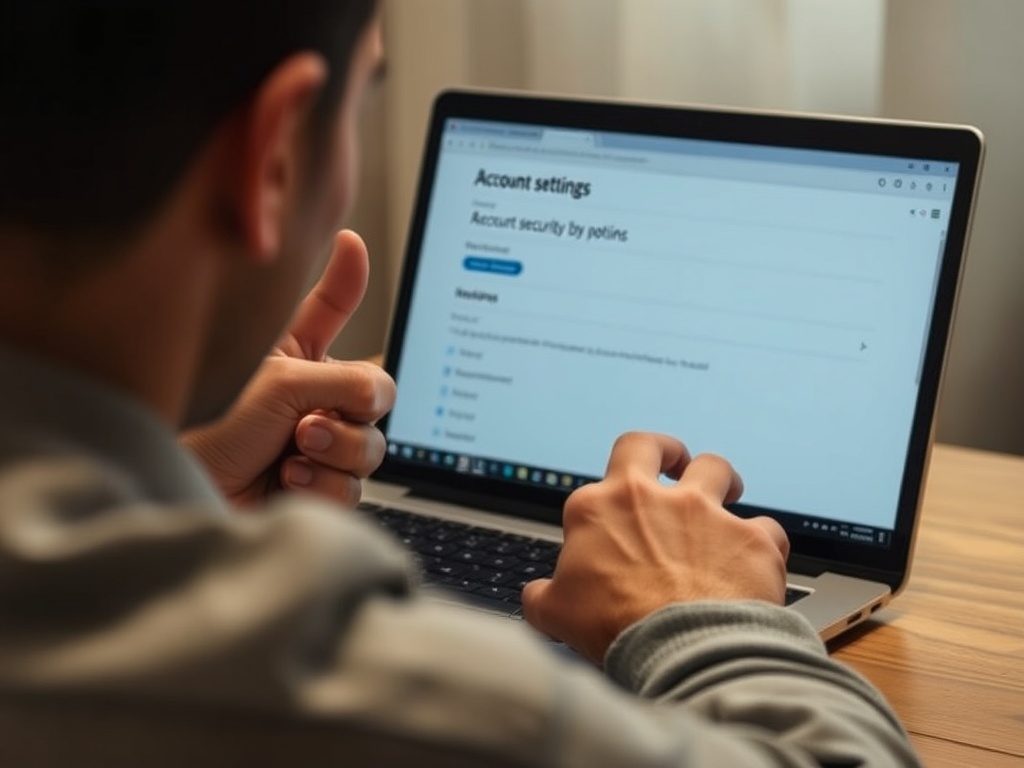
Do not create a predictable pattern such as BrandName2026! across many sites. Attackers know that people reuse patterns. Let the password manager generate random unique passwords. Your job is to remember one strong master password and protect the recovery process.
If a data breach notification appears, change the affected password and any reused versions immediately. If the account supports sign-out from all devices, use it. Review recovery settings because attackers often try to add their own recovery methods.
Business and SaaS accounts need extra checks
For teams, password setup is also an ownership issue. Shared passwords in chat, spreadsheets, or browser profiles create unnecessary risk. Use named accounts, role-based access, and a shared vault with permissions. Remove access when people change roles. Review admin accounts more often than ordinary accounts.
SaaS purchasing should include security questions before the team adopts a new tool. Does the vendor support SSO or MFA? Can admins export data? Can access be revoked centrally? The article on SaaS tools mistakes explains how weak evaluation creates rework later.
Password setup is not a one-time project. It is a lightweight routine: add accounts to the manager, remove duplicates, review MFA, update recovery details, and keep emergency instructions somewhere secure.
Recovery planning is part of password security
Many people secure accounts only to lock themselves out later. Recovery planning prevents that. Make sure the recovery email is still accessible, the recovery phone number is current, and backup codes are stored somewhere protected. For a password manager, understand exactly what can and cannot be recovered by the vendor.
For families or teams, decide how emergency access works before an emergency. That may mean a trusted contact, an administrator account, printed recovery codes in a secure location, or a formal offboarding process. The goal is to avoid both extremes: accounts anyone can access and accounts nobody can recover.
Passkeys and passwords can coexist
Many services now support passkeys, which can reduce reliance on typed passwords by using device-based authentication. They can be convenient and phishing-resistant, but they still require planning. Users need to understand which devices hold passkeys, how sync works, and what recovery looks like if a device is lost.
Do not treat passkeys as a reason to ignore account recovery. The same checklist still applies: protect the email account, secure the device, enable strong recovery options, and keep emergency access instructions clear.
A safer login setup by the end of the week
Pick five critical accounts and fix them first: email, password manager, banking, cloud storage, and work. Give each one a unique password, enable MFA, save backup codes, and check recovery settings. Once the highest-risk accounts are stable, repeat the same process in smaller batches. That is how password hygiene becomes manageable instead of overwhelming.