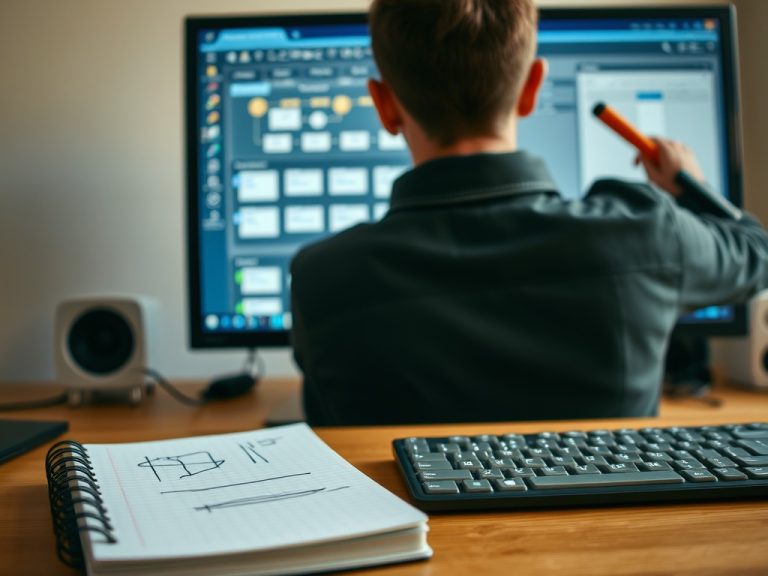
Screenshots capture a still image of your screen, while screen recordings capture motion, sound choices, and timing. The right choice depends on whether you need proof of a moment, a visual instruction, or a repeatable walkthrough.
Key takeaways
- Use screenshots for static evidence, bug notes, receipts, and quick instructions.
- Use screen recordings for workflows, training, demonstrations, and problems that happen over time.
- Check privacy, storage location, audio settings, and file format before sharing either one.
The fastest way to separate screenshots from recordings
| Need | Better choice | Why it fits |
|---|---|---|
| Show a single error | Screenshot | Fast, small, easy to annotate |
| Teach a multi-step process | Screen recording | Shows order, timing, and cursor movement |
| Document visual proof | Screenshot | Preserves a clear moment |
| Explain a confusing workflow | Screen recording | Reduces back-and-forth questions |
A screenshot is a picture. A screen recording is a short video. That simple split solves most confusion, but the practical choice depends on what the viewer needs to understand. A screenshot can show an error message, a setting, a receipt, or a design issue without forcing someone to watch a clip. A recording is better when steps, cursor movement, timing, menu paths, or repeated behavior matter.
Operating systems now include solid built-in capture tools, so most people do not need a separate app for routine work. Microsoft explains the Windows Snipping Tool as a way to capture, annotate, save, and share screen images, while Apple describes the Mac Screenshot tool as a panel for screenshots and screen recordings with controls for capture area, timer, pointer, and clicks. Those official guides are useful starting points for learning the core controls: Microsoft Snipping Tool and Apple screenshot and recording controls.
Common capture questions answered clearly
Do screenshots record audio? No. A screenshot is only a still image. If you need voice, system sound, or a narrated walkthrough, you need a screen recording tool with the right microphone and audio settings enabled.
Can a screen recording replace written instructions? Sometimes, but not always. Recordings are excellent for showing a task, yet written steps are easier to skim, translate, update, and search. For tutorials, the strongest format is often a short recording paired with a concise checklist. If your goal is to build repeatable guides, the same habits discussed in Automation basics mistakes That Slow You Down Every Day can help you avoid messy, one-off documentation.
Why do some apps block capture? Some streaming, banking, exam, and rights-protected apps restrict screenshots or recordings. That is not usually a technical failure. It is a privacy, licensing, or security control set by the app or operating system.
Privacy checks before you share a screen image
The biggest screenshot mistake is sharing more than intended. A full-screen capture can expose browser tabs, saved names, email previews, file paths, chat notifications, customer data, or a visible location. Before sending a capture, crop tightly, blur private areas, and close unrelated windows.
For recordings, make the same check but add sound, timing, and notifications. Disable pop-ups, silence chat apps, and verify whether the microphone is on. If you are recording a customer issue, get permission before capturing names, account numbers, or private messages. A recording can reveal patterns that a still image does not, including typing behavior and background audio.
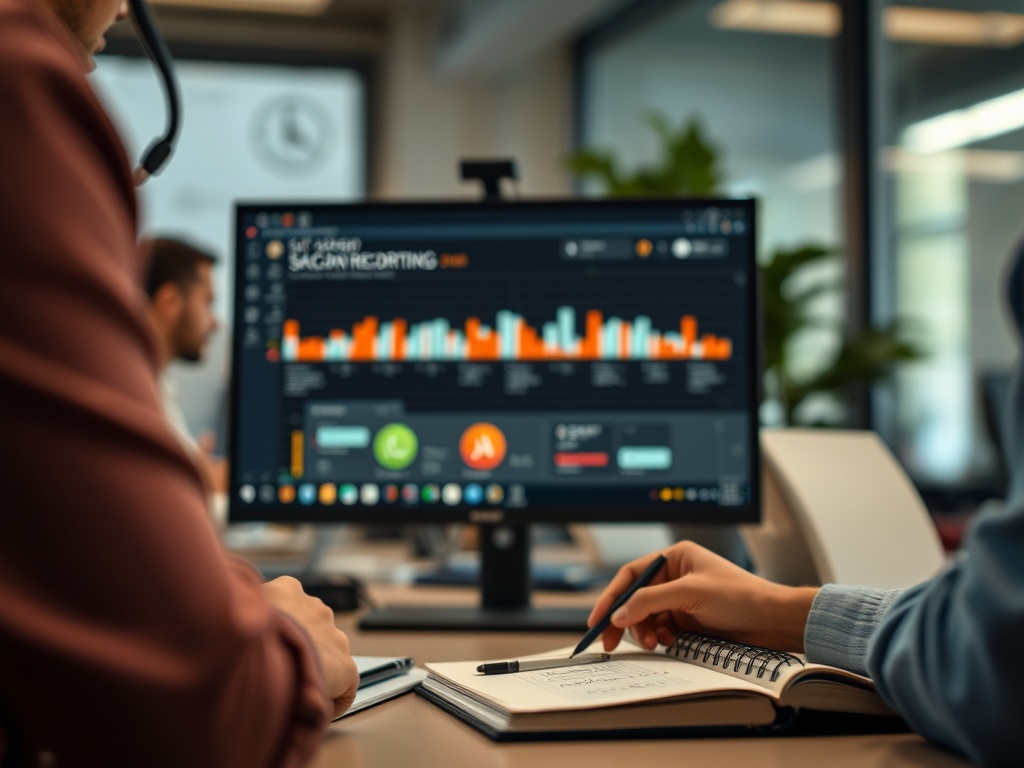
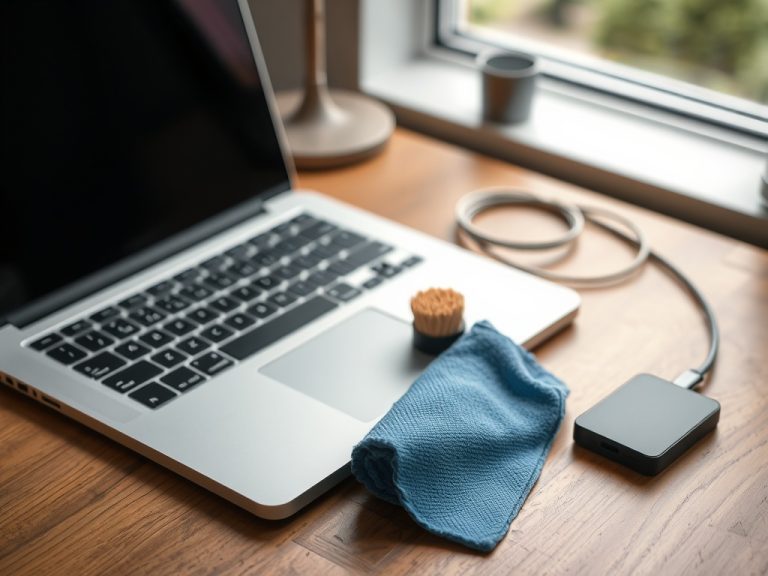
Storage also matters. Screenshots saved to a desktop may later sync to a cloud folder. Recordings can be large enough to trigger unwanted uploads or share-link limits. If your device is old or cluttered, capture files can also make maintenance harder; the beginner guide on cleaning and maintaining hardware safely explains why storage and care routines should be part of everyday device use.
File formats, quality, and size without the jargon
PNG is common for screenshots because it keeps interface text crisp. JPEG can be smaller, but it may blur small text and introduce compression artifacts. For screen recordings, MP4 is the safest general-purpose format because most devices and web platforms can play it without extra software.
Quality is not the same as usefulness. A huge full-resolution video can be harder to send than a short, trimmed clip. A tiny screenshot can become unreadable after compression. Capture only the needed area, zoom in before recording when small text matters, and trim dead time at the beginning or end. The viewer should not have to hunt for the point.
If a capture is part of a support request, name it clearly. A file called router-login-error-2026-05-30.png is easier to understand than screenshot-final-final.png. Good naming helps support teams, coworkers, and your future self find the right evidence later.
A capture workflow that works for most people
Start with the smallest useful capture. Use a selected area before a full screen. Use a still screenshot before a recording unless motion is needed. Add one or two annotations only when they improve clarity. Too many arrows and boxes can make a simple issue look more complex than it is.
When recording, rehearse once. Open the exact screen, decide where the clip should begin, and keep the cursor movement slow enough to follow. If you are explaining a web problem, include the browser address only when it is safe and relevant. If the issue involves web infrastructure, the comparison in ICANN vs IETF can help separate domain-name problems from broader internet standards questions.
Use this final review: crop private areas, confirm sound settings, check that text is readable, trim extra seconds, choose a useful file name, and test the file before sending. Those small checks prevent most capture-related confusion.
A quick review before sending a capture
Before you share a screenshot or recording, view it as the recipient will see it. Open the file from the saved location, not from the capture preview. Check that the important detail is readable at normal zoom. Confirm that no private tab, filename, contact name, account number, or notification appears around the edges. If the capture is for a support request, add one sentence explaining what the viewer should notice.
For recordings, watch the first ten seconds and the final ten seconds. Many clips include accidental setup time, background audio, or a moment after the task is complete. Trimming those seconds makes the file easier to review and reduces the chance that private information appears unexpectedly.
Your next clean capture
The best screen capture is not the fanciest one. It is the capture that answers the question with the least exposure, smallest reasonable file, and clearest visual context. For static proof, take a tight screenshot. For movement or repeated steps, record a short clip. For tutorials, combine both with written steps so the reader can watch, skim, and act.